App Store screenshots from your AI agent
Add the Store Screenshot Studio MCP server to Claude Code, Cursor or Codex and ask for screenshots. Your agent finds the captures, writes the headlines, shows you a preview and exports all 11 store sizes. It’s free and runs on your computer.
1. Add it to your agent
One command or one click. Needs Node.js 20 or newer. No account, no API key.
-
Claude Code
Run in a terminalclaude mcp add store-screenshot-studio -- npx -y https://storescreenshotstudio.com/mcp/store-screenshot-studio-mcp.tgzAdds it to the current project. Put --scope user after "add" to have it in every project.
-
Or add it by hand
~/.cursor/mcp.json{ "mcpServers": { "store-screenshot-studio": { "command": "npx", "args": [ "-y", "https://storescreenshotstudio.com/mcp/store-screenshot-studio-mcp.tgz" ] } } } -
Or add it by hand
code --add-mcp '{"name":"store-screenshot-studio","type":"stdio","command":"npx","args":["-y","https://storescreenshotstudio.com/mcp/store-screenshot-studio-mcp.tgz"]}' -
Codex
Run in a terminalcodex mcp add store-screenshot-studio -- npx -y https://storescreenshotstudio.com/mcp/store-screenshot-studio-mcp.tgz -
opencode
Add to opencode.jsonopencode.json{ "$schema": "https://opencode.ai/config.json", "mcp": { "store-screenshot-studio": { "type": "local", "command": [ "npx", "-y", "https://storescreenshotstudio.com/mcp/store-screenshot-studio-mcp.tgz" ], "enabled": true } } }In your project, or ~/.config/opencode/opencode.json for every project.
-
Gemini CLI
Run in a terminalgemini mcp add store-screenshot-studio npx -y https://storescreenshotstudio.com/mcp/store-screenshot-studio-mcp.tgz -
Claude Desktop, Windsurf and others
Add to the client’s MCP configclaude_desktop_config.json, mcp_config.json…{ "mcpServers": { "store-screenshot-studio": { "command": "npx", "args": [ "-y", "https://storescreenshotstudio.com/mcp/store-screenshot-studio-mcp.tgz" ] } } }Any client that runs local (stdio) MCP servers works: the command is npx with the two arguments shown. In Claude Desktop: Settings → Developer → Edit Config, then restart it.
Or let your agent install it
Paste this into your agent’s chatInstall the Store Screenshot Studio MCP server for me. The command to register is: npx -y https://storescreenshotstudio.com/mcp/store-screenshot-studio-mcp.tgz (instructions for each client: https://storescreenshotstudio.com/mcp). Then use it to make App Store and Google Play screenshots for this app.2. Ask for screenshots
Open your agent in your app’s project and ask in your own words. For example:
- “Make App Store and Google Play screenshots for this app. Take the screenshots from the simulator and match the colours to our brand.”
- “The screenshots are in ./fastlane/screenshots/en-US. Write a headline for each and show me a preview before you export.”
- “Translate the screenshots to German, Japanese and Spanish and export all languages.”
- “We redesigned the home screen. Replace the first screenshot and export again.”
- “Open the project in the editor so I can adjust it myself.”
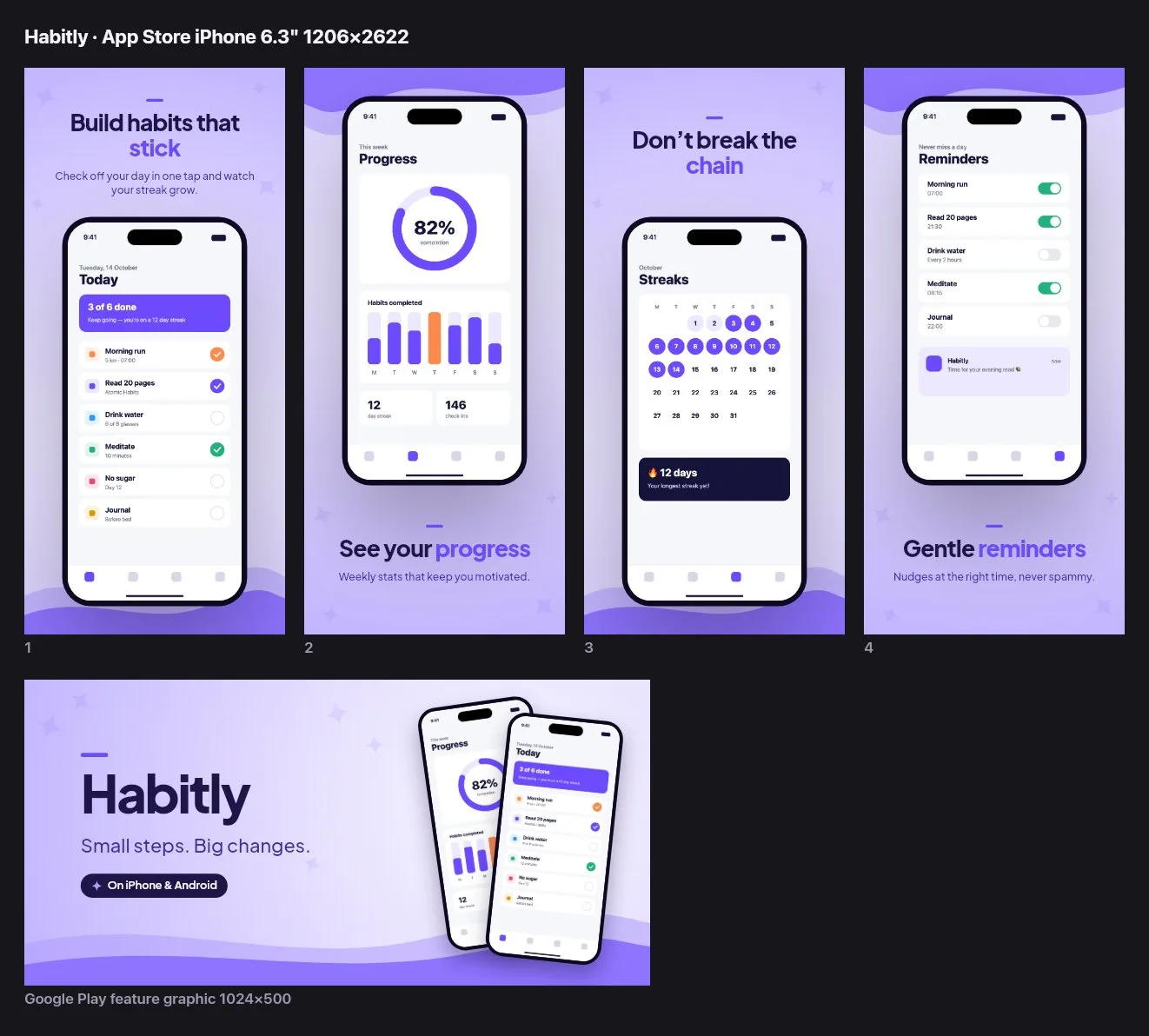
What your agent can do
- Build a project from your captures. It points at image files or a folder; phone and tablet screenshots are sorted into the right devices.
- Everything the editor can. Headlines with a highlighted word, seven slide layouts including two-slide panoramas, themes or your brand colours, fonts, device frames, patterns, the Google Play feature graphic.
- See its own work. Every change returns a preview, at any store size and in any language.
- Translate. Your agent is the translator: it adds languages and each one exports to its own folder.
- Export upload-ready files. Exact pixel sizes, 24-bit RGB PNG without alpha, in folders named after the App Store Connect and Play Console slots.
- Answer spec questions. It has the same App Store and Google Play size tables as our guides, and can check which slots an image fits.
- Hand over to you. “Open it in the editor” brings the project into the visual editor in your browser for hand-tuning.
Private by design
The server runs on your computer and makes no network requests: it reads the images you point it at, draws with the same engine as the editor and writes files next to your code. Nothing is sent to us, and there is no account to sign in to.
Two things do use the network, and neither is the server: npx downloads it from this site (and checks for a newer version when your agent starts it), and your agent sends what it reads, including preview pictures, to its AI provider.
Questions
Is the MCP server free?
Yes. It does everything the editor does: every size, no watermark, no account. It runs on your computer, so it costs us nothing per user.
Are my screenshots uploaded?
Not by us. The server reads your images from disk, renders on your computer and writes the PNGs to a folder. It makes no network requests. Your AI agent does see the preview pictures it asks for, so those go to whichever AI provider your agent uses, like anything else it reads.
Which AI agents does it work with?
Any client that can run a local (stdio) MCP server: Claude Code, Cursor, VS Code with Copilot, Codex, opencode, Gemini CLI, Claude Desktop, Windsurf and others. Browser-only chat apps can’t reach a server on your computer.
Do the screenshots look the same as in the editor?
Yes. The server uses the editor’s own drawing code and fonts, so layouts and line breaks are identical and the PNGs are the same exact sizes, 24-bit RGB without alpha. Characters the chosen font doesn’t cover (for example Chinese or Japanese) use a system font, which can differ slightly from the browser’s.
Where are projects saved?
In a store-screenshots folder in the directory your agent works in, one folder per project with a readable project.json and your images. Commit it with your app if you like. Exports go to export/ inside the project.
Can I edit the result by hand?
Yes. Ask your agent to open the project in the editor. A small page opens in your browser; one click sends the project to the editor in a new tab. It goes from your computer to your browser without passing through our server. To bring changes back, download a backup in the editor and ask your agent to import it.
How do I update or remove it?
Updates are automatic: npx checks this site for a newer version each time your agent starts the server. To remove it, delete the entry from your client’s MCP settings (for example claude mcp remove store-screenshot-studio).
What do I need installed?
Node.js 20 or newer (it provides npx). The first start downloads the server (about 1 MB) from this site and a drawing library from npm. macOS, Windows and Linux work.
Related
How to make App Store screenshots
A step-by-step workflow from raw captures to a ready-to-upload ZIP.
App Store screenshot best practices
Headlines, ordering and design choices that make people tap “Get”.
Screenshot size checker
Drop images to see which App Store and Google Play slots they fit — and remove transparency.