
Google Play feature graphic size (2026)
The one required banner on every Google Play listing: the exact specs, where it shows up and how to design one that still works when it’s cropped.
Short version: 1024 × 500 pixels, JPEG or 24-bit PNG, no transparency. It is required. Keep text and key visuals near the centre.
Feature graphic specifications
- Dimensions: exactly 1024 × 500 px, landscape.
- Format: JPEG or 24-bit PNG.
- Transparency: not allowed. Flatten the image onto a solid background.
- Required: yes, for every app and game.
- How many: one per store listing (you can add a different one per language).
Last checked October 2026. The authoritative rules are in Google’s Play Console help.
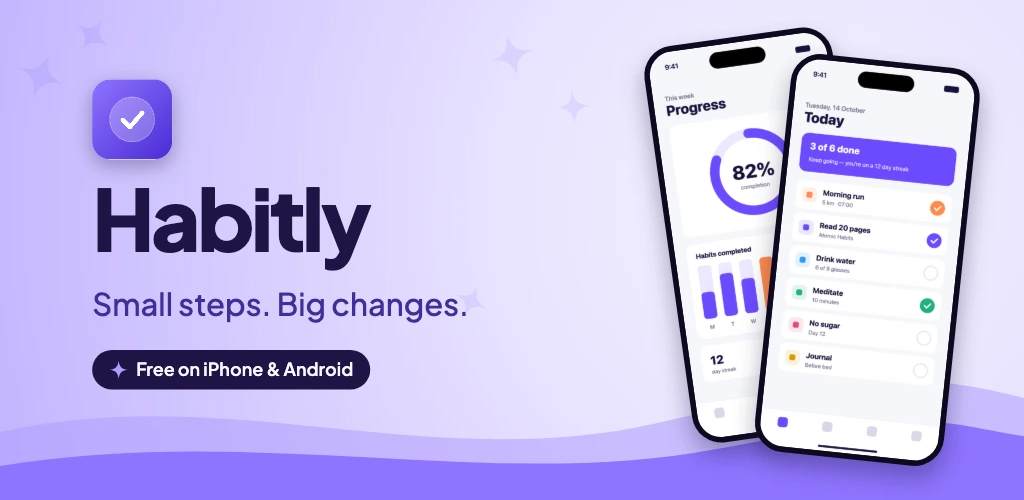
Where the feature graphic appears
Google uses the feature graphic in promotional placements across Google Play, and as the thumbnail for your promo video if you’ve added one. A play button is drawn on top of it in that case, so keep the very centre free of small detail.
Google changes these placements regularly, and the graphic is shown at different sizes and crops. Design it so it still makes sense when it’s small, and when the edges are cut off.
Design tips
Keep a safe zone
Put your app name, text and the most important visuals in the middle of the canvas, with generous padding on all sides. Treat the outer 10–15% as background that may be cropped or covered.
Few words, big type
Your app name and one short benefit is plenty. If the text isn’t readable when the graphic is a quarter of its size, it’s too small.
Show the product
One or two devices with your strongest screens tell people what the app looks like before they tap. Your app icon helps tie the banner to the listing.
Match your screenshots
Use the same colours, fonts and background as your screenshots so the listing feels like one piece.
Don’t imitate Google Play’s UI
Avoid fake buttons, rankings, “#1” claims or award badges you haven’t earned. They can get your listing rejected under Google’s metadata policies.
Making one in Store Screenshot Studio
Every project includes the feature graphic by default. It reuses your app icon, theme and screenshots, so it always matches the rest of your listing, and it exports as a 1024 × 500 24-bit RGB PNG in the Google Play folder of your ZIP.
FAQ
What size is the Google Play feature graphic?
Exactly 1024 × 500 pixels. Play Console rejects any other size.
Is the feature graphic required?
Yes. Play Console won’t let you publish a store listing without one.
What file format should the feature graphic be?
JPEG or 24-bit PNG without transparency. A PNG with an alpha channel will be rejected.
Where is the feature graphic shown?
Google uses it in promotional spots on Google Play, and as the cover of your promo video if you add one. Where exactly it appears changes over time, so design it to work on its own.
Can I put text on the feature graphic?
Yes, but keep it short: your app name and one benefit at most. It is often shown small, and parts of it can be covered or cropped.
Related guides
App Store screenshot sizes
Every iPhone and iPad size App Store Connect accepts, plus upload rules.
Google Play screenshot sizes
Phone and tablet screenshot sizes, limits and the rules Play Console enforces.
iPad screenshot sizes
When you need iPad screenshots, which size to upload and how to make them.
Make your feature graphic in a minute
Pick a theme, add your icon and screenshots, and download a correctly sized feature graphic along with all your screenshots.
Open the editor — it’s free